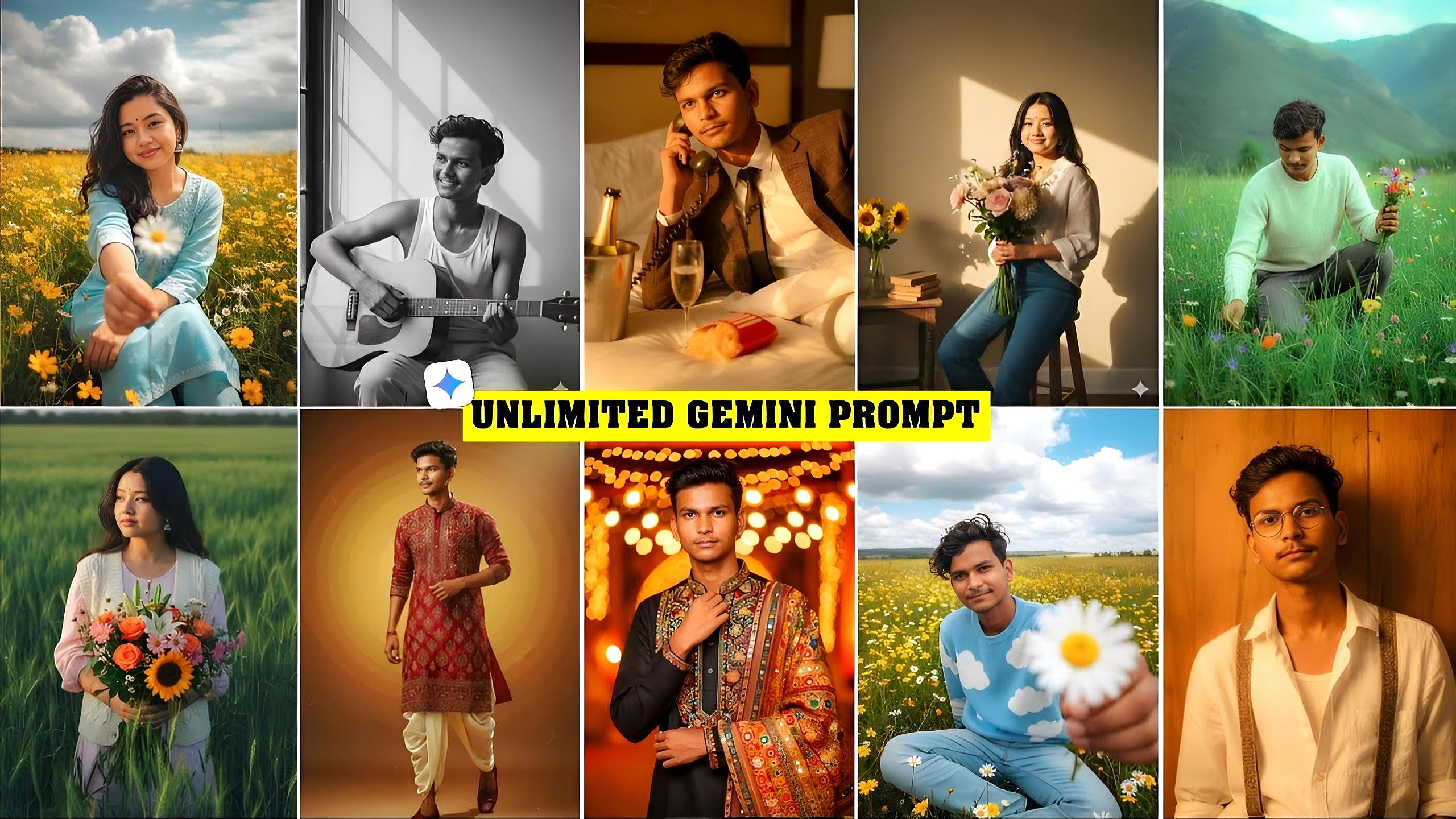
Google Gemini AI Photo Editing Prompt – Photo editing has become a part of daily life in today’s digital world. From students to professionals, everyone needs good-looking photos for social media, projects, and online work. But not everyone knows how to use advanced tools like Photoshop. This is where Google Gemini AI photo editing prompt becomes a game changer. With this tool, you can edit photos easily just by writing a few words.
In this detailed guide, we will cover everything step by step – from what Google Gemini AI is to how you can use prompts for professional editing. By the end of this article, you will be ready to try Gemini AI and transform your photos in minutes.
Why Use Google Gemini AI for Photo Editing?
The main reason people prefer Gemini AI over traditional tools is its simplicity and speed. You don’t have to be a professional editor to get high-quality results. Just upload a photo, write a short instruction, and your work is done.
Unlike other apps, Gemini does not require heavy downloads or high-end devices. It works online and gives professional-level results instantly. This makes it ideal for social media creators, students, and even professionals who need quick editing.
What is Google Gemini AI?
Google Gemini AI is an advanced artificial intelligence model developed by Google. It is designed to handle multiple tasks like writing, coding, translation, and even image editing. The photo editing feature of Gemini works with prompts – short instructions written in simple English.
For example, instead of learning difficult editing techniques, you can just type “change background to mountain view” and Gemini will instantly generate the result. It is like having a professional editor who listens to your commands and delivers perfect photos in seconds.
Google Gemini AI Photo Editing Prompt Copy & Paste
1. Sunset Background Transformation
Imagine a normal photo clicked in daylight. Write a prompt like: “Change the background into a beautiful sunset view with golden and orange tones, giving a calm and cinematic effect. Keep the person clear and add soft lighting on the face for natural balance.”
2. Traditional Indian Festival Look
Use this type of prompt: “Convert this photo into an Indian festival style with colorful lights, flower garlands, rangoli on the floor and bright traditional outfits. Add a festive glow on the face and make the background look lively as if clicked during Diwali celebration.”
3. Professional Studio Portrait
Try: “Edit this image into a professional studio portrait with soft lighting, blurred background and high-quality finish. Make skin smooth, adjust shadows for depth and add a sharp, clean look that makes the photo suitable for resumes, portfolios and LinkedIn profiles.”
4. Watercolor Painting Effect
Prompt: “Transform this photo into a realistic watercolor painting with smooth brush strokes, soft pastel colors and artistic depth. Make it look like a hand-painted artwork on canvas, keeping all details visible while giving a natural artistic touch.”
Google Gemini AI Photo Editing Prompt Tutorial
Now let us understand the complete process in simple steps.
Step 1: Open Google Gemini
First, go to the official Google Gemini website or app. Sign in using your Google account. On the home screen, you will see options like text, coding, and images. Select the image editing option.
Step 2: Upload Your Photo
Choose the photo you want to edit and upload it. Gemini will take a few seconds to process your image.
Step 3: Write Your Editing Prompt
In the text box, type your instruction. Prompts can be simple like:
- Change background to beach
- Remove pimples and smooth skin
- Make it look like a painting
- Add colorful lights in the background
The clearer your prompt, the better the result.
Step 4: Generate and Review
Click on generate. Within a few seconds, Gemini will show your edited photo. You can compare it with the original and see the difference.
Step 5: Download the Final Image
Once you are happy with the result, download the photo to your device. If you are not satisfied, you can try a new prompt for better output.
Tips for Writing Perfect Prompts
The success of Gemini AI editing depends on how well you write prompts. Always be clear and specific. Instead of saying “make it better,” write “brighten the colors and add sunset in background.” Short and direct instructions give the best results. If the first attempt does not look perfect, try rephrasing your prompt. With little practice, you will learn how to get exactly what you want. Google Gemini AI Photo Editing Prompt
Conclusion
The future of editing is here, and it is powered by artificial intelligence. With Google Gemini AI photo editing prompt, you don’t need advanced skills or hours of effort. Just upload your image, type your command, and get instant professional results. This step by step guide has shown you how simple it is to use Gemini AI. Now it’s your turn to try and create stunning edits that look professional without spending money or time on complex tools.
FAQs on Google Gemini AI Photo Editing
Q1. Is Google Gemini AI free for photo editing?
Yes, basic features are free. Some advanced features may require subscription.
Q2. Do I need editing skills to use Gemini AI?
No, you just need to write simple prompts in English.
Q3. Can Gemini AI replace Photoshop?
For basic and creative edits, yes. But for professional design-level work, Photoshop still offers more control.
Q4. Does Gemini AI work on mobile?
Yes, you can access it through the app or mobile browser.
